 Home & Kitchen
 Electronics
 Tools & Home Improvement
 Patio & Garden
 Toys & Games
 Sports & Outdoors
 Automotive
 Appliances
 Beauty & Personal Care
 Health & Household
 Grocery & Gourmet Food
 Office & School
 9 product images
External / Drive for Laptop, USB 3.0 ROM +/-RW Burner
Key item features
- Abandoning optical drives allows computer manufacturers to create thinner and more compact laptops
- Most of the new notebooks on the market now do not built-in CD-ROM drive, and some only have a limited number of USB ports
- In order to make laptops thinner and have higher transmission speeds, some even only have Type C ports
- But we may have a large collection of 90s CDs, and we want to put them in a laptop to feel the nostalgia or insert a collection to watch movies
Price when purchased online
GUARANTEED SAFE CHECKOUT


Shipping information
Standard shipping is $5.95 and free on orders of $39 or more after discounts. Orders ship within 1–3 business days; delivery usually takes 5–15 business days.
View delivery policyReturns & refunds
We accept returns within 30 days of delivery for unused items in their original packaging. Contact us with your order number to start a return.
Read our return policyNeed help?
Our support team answers every message within one business day.
Contact customer support- Maximum 1 item per order. While stocks last.
- 5-year warranty on all products
- Taxes and fees included
- Direct shipping from the US
About this item
Abandoning optical drives allows computer manufacturers to create thinner and more compact laptops. Most of the new notebooks on the market now do not built-in CD-ROM drive, and some only have a limited number of USB ports. In order to make laptops thinner and have higher transmission speeds, some even only have Type C ports. But we may have a large collection of 90s CDs, and we want to put them in a laptop to feel the nostalgia or insert a collection to watch movies. Or, you may just need a CD/ drive for emergencies, such as data transfer, system backup, etc.
Fortunately, We have already done all the work for you. This multi-function 2 in 1 USB A/USB C data cable external USB 3.0 disc drive that we launched is not only a CD/ reader, but also it has the function of CD/ burner. This will allow you to have more budget to buy the latest laptops that are comfortable, smooth, and have powerful processors and graphics cards.
THESE THINGS YOU NEED TO KNOW BEFORE BUYING - This rw drive can only start its job after it is connected to a laptop or a desktop, so it is not compatible with TVs, cars, trucks, projectors, tablets, iPads, phones, PS4/5, Xbox, Switch, surface (some models), etc. In addition, it is compatible with Windows11/10/8/7/XP/Vista, Mac OS and Linux. Not compatible with Chrome OS, Ubuntu system and Blu-ray disc.
With this USB external CD/ RW Drive, you can read movies DVDs, play music CDs, burn and rip discs, copy photos, install software/games/system, backup data and more. And just slips easily into your travel bag, perfect companion for lovers, using everywhere.
New upgraded loader with faster speed, low impedance & anti-interference ability, bring you a fast and more smooth experience.
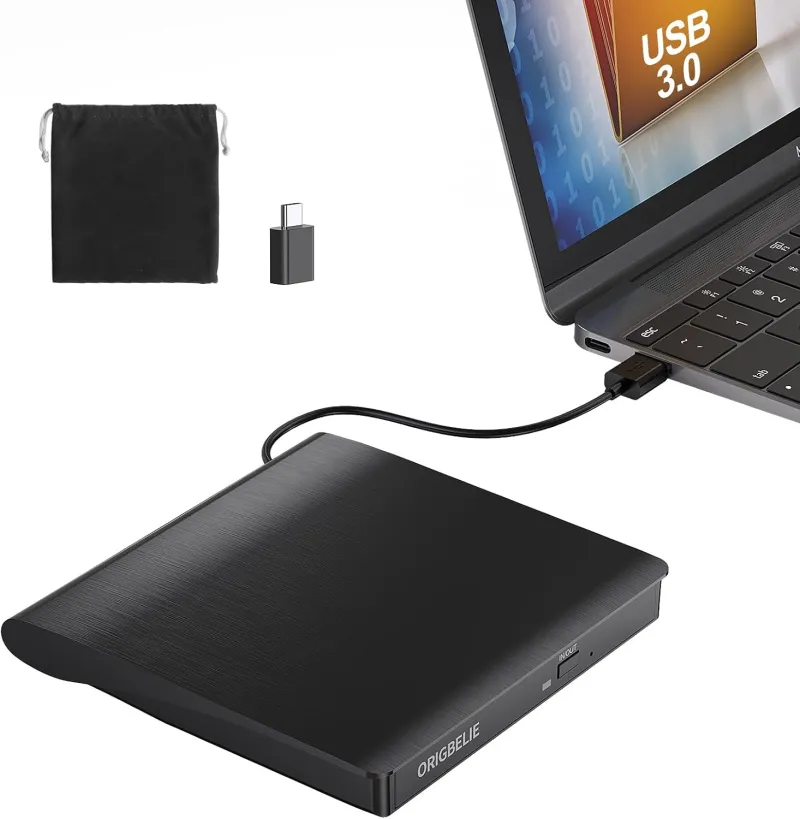
Equipped with USB-A connector and USB A to USB C Adapter make it easier to connect to more laptops and desktop computers, no USB hub/adapter required. Plug and Play.
We also thoughtfully designed a supplementary power supply function. While connecting to the computer, use the USB A to Mini USB power supply cable to connect the 5V charger/ power bank to the optical drive to supplement the power supply, so that some computers with insufficient power supply can be used without worrying about being unable to use it.
- External CD/ Drive * 1
- User Manual * 1
- USB A to USB C Adapter*1
- USB A to Mini USB Power Supply Cable * 1
- USB Drive Storage Bag * 1
You need to ensure that there is a program or app on your laptop for playing . Windows 10, unlike some of its predecessors, no longer ships with a built-in player.
- Click "Start" button on the desk of your laptop. Search "Windows Media Player" to start the program.
- Connect an external drive to your laptop via a USB cable and insert the disc to the external drive.
- Choose your Disk and click "Play" button. Then you can watch movie on your laptop.
If you haven't ripped your music CDs to audio files on your computer yet, it's not too late. All it takes is a ORIGBELIE CD drive and a bit of time. When you're done, your physical music collection will become your digital music collection, You can then listen to that music on your computer or copy it over to your smartphone. There are even many services that will let you store that music online and stream it from anywhere!
- Connect an external cd drive to your laptop via a USB cable
- Press the Eject button on the cd reader.
- Place the disc in the tray label-side up, and close the tray by pushing it
- Click choose what to do with audio CDs, then Double-click your audio CD in the menu and you'll see all of the tracks appear in the center of the window. If nothing happens when you insert your disc, you can start Windows Media Player yourself.
You've put a lot of work into creating your computer files, so you'll want to remember to back them up. If you back up your computer files, if your computer is damaged or loses data, you'll have a copy safely tucked away.
- Place a blank writable CD-R/RW (read/writable) or -R/RW in your CD-RW /-RW drive and then choose Start→Documents.
- Select all the files that you want to copy to disc. Right-click the files that you want and then choose Copy To Folder.
- In the Copy Items dialog box, click the CD-R/RW or -RW drive and click Copy.
- Your files are copied.
When software comes on a CD or and you want to install it on a laptop, you may can't just pop open the disc drive or slide a disc into a slot, like you would on a computer with an optical drive. Generally speaking, the latest laptops forgoes the optical drive to keep it thin and small.
- So you can resort to ORIGBELIE external CD/ drive to get your programs installed.
- The ORIGBELIE external usb 3.0 drive equipped with USB-C and USB-A connectors make it easier to connect to more laptops and desktop computers, Plug and Play, Compatible with Windows 10 / 8 / 7 / Vista / XP, Linux and all versions of Mac OS. Ideal for laptop and desktop PC.
Play a movie on laptop
Play a CD on a macbook
Back Up Computer Files to CD/
Install Software If PC Lacks an Optical Drive
1.The drive should be connected with USB port on laptop rather than connect with USB HUB. In addition, please connect the item with USB port behind of computer host if you use a desktop.
2.Ensure CDs is placed well and not scratched. The raised fixing post in the middle of the CD drive tray has three spring buckles. You need to gently press the CD disc into the spring buckles to secure the disc.
3.Make sure your computer's CD/ driver is intact before using an external optical drive. The computer operating system comes with a CD/ driver. If the program is damaged or removed, the CD/ driver needs to be updated or reinstalled.
4.Setting the Region to USA on the " RW Drive" - Properties - click Hardware Tab - click Properties button - then choose country Region (USA is 1) and click OK to apply. Note: You are only allowed to change the region code 4-5 times.
5.It's better to use the 5V charger/power bank to increase the power if your devices don't have enough power to support the external drive.
6.Insert the external optical drive into the computer. After the Windows system recognizes the optical drive, the " RW Drive" icon will be displayed. The Mac OS computer will not display the device icon until the disc is placed in the optical drive and the disc is read successfully.
7.WINDOWS 11 needs a media player (such as VLC ) and a network connection.
8.Computers often do not natively support movie playing, so a third-party media player (such as VLC) must be downloaded and installed to watch DVDs using this CD/ player. You can download and install a playing/burning software you like. You can also refer to the following software:
player software: Any Media Player, Any ; Burning software for Windows operating systems: InfraRecorder, Ones, Express Disc Burner; Burning software for Mac OS: Burn for mac; Burning software for Linux OS/Unix OS: K3b (KDE Burn Baby Burn)
9.Because the video formats of most computers and mobile phones are not compatible with , you need third-party software to convert the file format to a format that can be displayed on the disc, otherwise, even if you burn the file to a disc, it will not work.
10.The Mac OS system comes with a burning function:
Connect the optical drive and put the disc into it - click "File" on the top menu bar - click on the new "Burn Folder" - drag the files to be burned into the "Burn Folder" - click "Burn to Disc" - and then You can eject the disc. But one thing to note is that Mac OS computers can only burn blank discs, and a disc can only be burned once.
11.For the Mac OS, you need to eject the disc through the Mac OS command. At this time, pressing the eject key of the external optical drive will not work.
Please check if your computer is recognizes to the optical drive (if your computer recognizes the optical drive, you can see the icon of " RW Drive" in your computer's "My Computer". The Mac OS computer will not display the device icon until the disc is placed in the optical drive and the disc is read successfully. ).
If the optical drive is not recognized by the computer, the following are suggestions for solutions.
*Method 1:Check external connections.
1. Use the Type A and Type C cables on the back of the machine to connect the laptop. (The cable comes with the package is only for current transmission, not for data transmission.)
2. Connect the machine to other USB ports.
*Method 2: Update or reinstall the driver.
Drivers for your CD, drive is included within the Operating System and hence does not require you to install a specific driver. Uninstalling the driver and restarting the computer will reinstall the driver which will resolve most issues related to the device driver.
*Method 3: Run the Hardware and Devices troubleshooter.(Windows 7, Windows 8, Windows 8.1 and Windows 10)
You can run the Windows Hardware and Devices troubleshooter which is built-in to Microsoft Windows. The Hardware and Devices troubleshooter is available in Microsoft Windows 7, Windows 8/8.1 & Windows 10 only.
If the optical drive is recognized by the computer, the product problem you encounter may be caused by the following two reasons:
1. The power supply of the product is insufficient - Please use a 5V charger / power bank supply to supplement it.
(Note: For the computers, you need to connect the external CD/ drive to the computer first, and then connect the supplementary power supply to the external CD/ drive, otherwise the computer will not recognize the external CD/ drive.)
ORIGBELIE External CD/ Reader and Burner
Powerful Performance
2-in-1 USB 3.0 Connector
Supplementary Power Supply
Package Contain
How to Play a Movie on Your Laptop
How to Play a CD on a Macbook
How to Back Up Computer Files to CD/
How can i install software that's stored on a CD or If my PC lacks an optical drive?
Some things to note about this USB 3.0 CD ROM external drive
For troubleshooting steps
【Plug & Play External CD ROM Drive】This ORIGBELIE external cd/ drive for Macbook does not need to install additional drivers, just plug the USB A/USB C data cable into the computer, insert the CD/, and then the external cd/ drive for laptop will automatically recognize it, use appropriate software to read and burn your CDs or DVDs. Easy to use!
【USB 3.0 High-Speed External CD Drive】The external cd/ drive for PC uses high-speed USB 3.0 technology, which provides higher data transfer rates up to 5 Gigabits/S (625MB/S). It is approximately 10 times faster than USB 2.0. Meanwhile, the external cd/ drive for Mac delivers up to 8x read/write speeds and up to 24x CD read/write speeds, faster than you might expect. This is a powerful and fast external cd/ player / reader / writer / rewriter / burner / ripper / recorder.
【Wide Compatibility CD Reader & Burner】The external disc drive supports CD±R/RW, CD-ROM, ±R/RW, ±R DL, -ROM, -RAM, VCD and SVCD. This USB cd/ drive supports different devices such as Macbook, iMac, Mac, Notebook, Desktop, PC and Laptop etc. It's compatible with Windows 11/10/8/7/XP , Vista 7/8, Linux, Mac OS. (Car, TV, Tablet, Phone, Projector, PS 4/5, Xbox, Switch, Chrome OS, Ubuntu system and Blu-ray disk are not supported;Windows 11 requires media player and network.)
【2 in 1 USB C&A Data Cable】The built-in data cable (on the back of the drive) with USB 3.0 type-A and type-C connectors, make it easier to plug the cd drive into different laptop and PC without any adapters. And no worries about losing data cables. We also considerately equipped with a power supply cable, so that some computers with insufficient power supply do not have to worry about not being able to use it. It makes ORIGBELIE external cd drive compatible with most computers, old and new.
【RGB LED Color Gradient Light External Drive】This cd rom external drive for laptop is equipped with the latest RGB LED lights. Cool RGB LED indicator light that can cycle and gradually change colors. It makes an ordinary external usb cd/ drive cool and fashionable.
【Portable & Compact CD Player for Laptop】This ultra-thin cd/ player for Macbook has a cool design and a sense of technology, the USB data cable is integrated with the external optical drive, and it is matched with a storage bag, which is easy to use and easy to carry. It is the best choice for home, office and travel. (If you don't need the carrying case, you can find the product by searching "B0FHHHL7G8" on Amazon.)
【Worry-Free Warranty】What You Get: ORIGBELIE External CD/ Drive *1, USB A to Mini USB Power Supply Cable*1, External Disk Drive Storage Bag*1, External Disc Drive Carrying Case*1, User Manual*1, ORIGBELIE worry-free 24-month warranty, and 7-day/24-h friendly customer service. If you have any problems, we will 100% solve them.
【Kind Tips】1 Due to limitations of Mac OS, the tray cannot be opened by the button after playing or burning a disc. To eject a disc on a Mac, right-click the desktop icon and select Eject, or go to File > Eject from the menu. 2 Plug the type C&A cable (hidden under the drive) into your computer. Do not confuse it with the power supply cable. 3 Plug & Play means there is no need to manually install drivers, but software is still required to play or burn discs. 4 Please check the list of compatible devices carefully to avoid purchasing the wrong product.
Specifications
Full specifications are listed in the product description above.